If you’re launching a YouTube channel in 2026, editing is the part that can quietly kill your motivation. Not because it’s hard in a technical sense, but because it’s repetitive: trimming dead space, fixing audio that sounded fine in the room, adding captions, exporting the right format, then doing it again next week.
That’s why choosing the right YouTube video editor matters. “AI” won’t make your videos good on its own, but it can take care of the cleanup work that usually eats your time. A solid AI video editor for YouTube should make the boring parts faster: subtitles, pacing, noise reduction, background touch-ups, and resizing for Shorts. Then you spend your energy on what viewers notice: clarity, structure, and personality.
Top 7 AI video editing software for YouTube
1. Movavi Video Editor
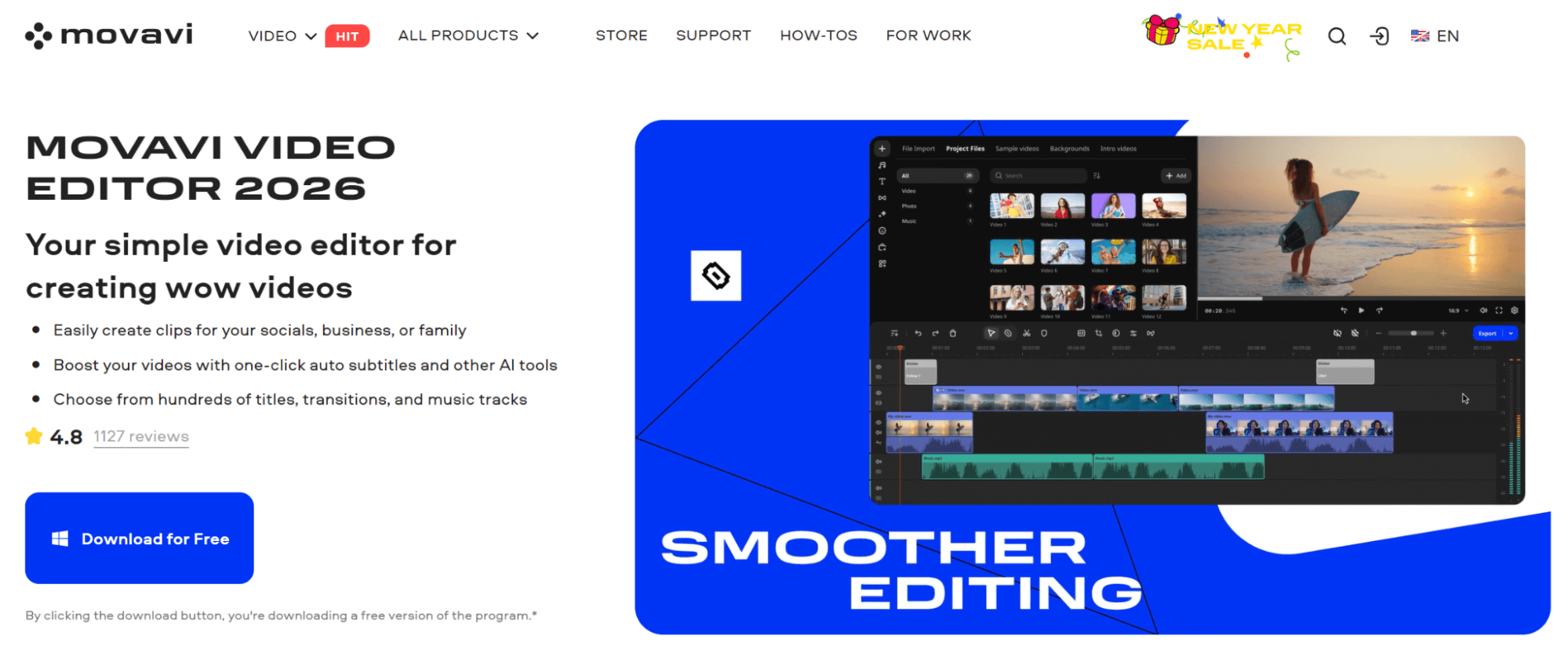
Movavi Video Editor is built for creators who want to get a clean result without learning a complicated interface first. You get the normal timeline essentials (cutting, transitions, titles) plus practical AI helpers: automatic subtitles, background removal, motion tracking, and tools that help tidy audio and pacing.
Best for: Beginners making tutorials, vlogs, commentary, or “camera + screen recording” videos. Also great if you’re editing on a mid-range laptop and don’t want to fight your software.
Pros:
- Easy to learn without watching a two-hour course
- AI features that solve real creator problems (captions, cleanup, quick polish)
- Enough creative tools to keep your videos from looking plain
Cons:
- Not designed for heavy VFX workflows
- Trial/export limitations may push you toward a paid license
2. Wondershare Filmora
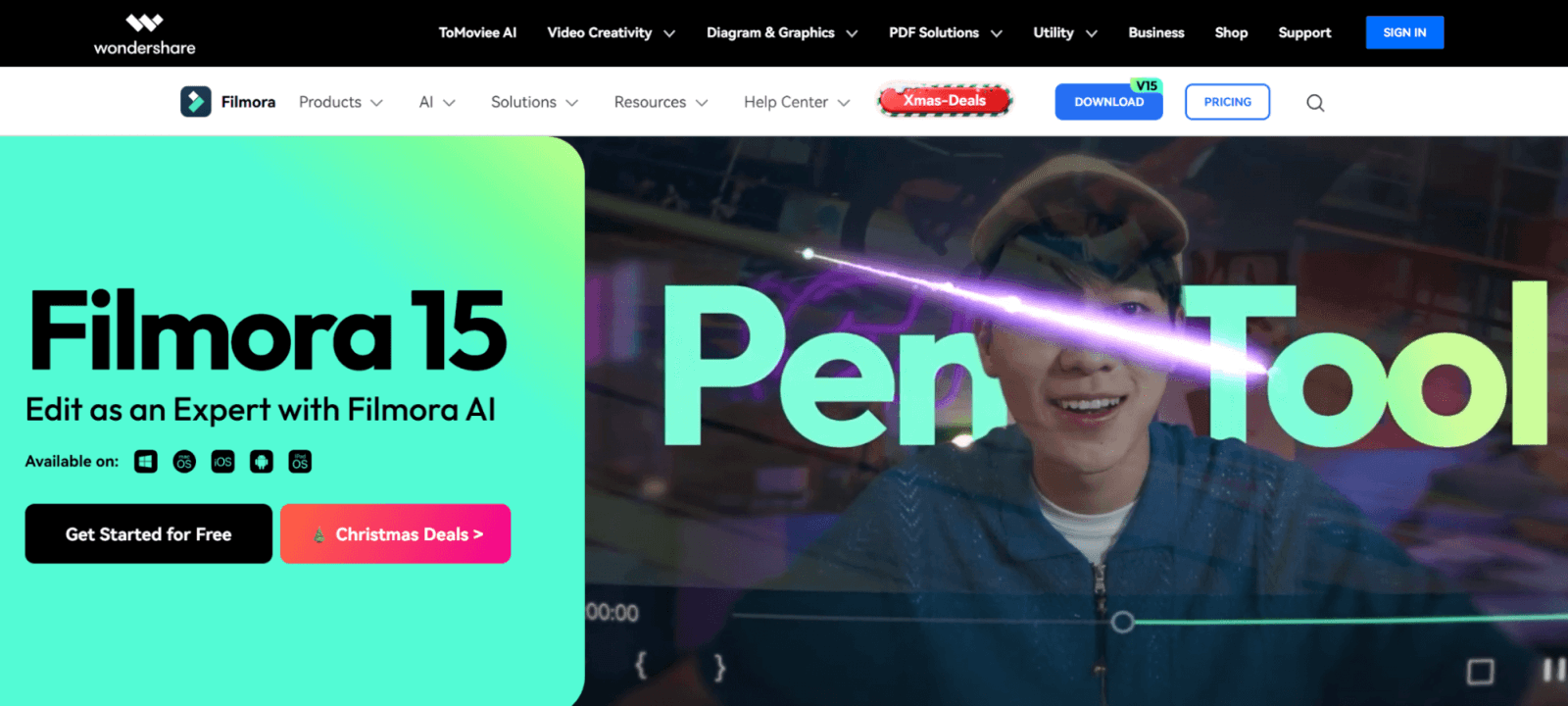
Filmora is for people who like a friendly UI but still want plenty of effects and shortcuts. Its AI tools typically focus on speeding up the edit (captions, cutouts/background isolation, assisted trimming) and on giving you stylized looks quickly.
Best for: New YouTubers who want templates, overlays, and an editor that feels approachable but not “toy-like.”
Pros:
- Fast to pick up, lots of built-in looks
- Helpful AI for captions and quick cutouts
- Good for creators who like visual flair
Cons:
- Easy to overuse presets and end up with a “template” vibe
- Some creators eventually want more control than it offers
3. DaVinci Resolve
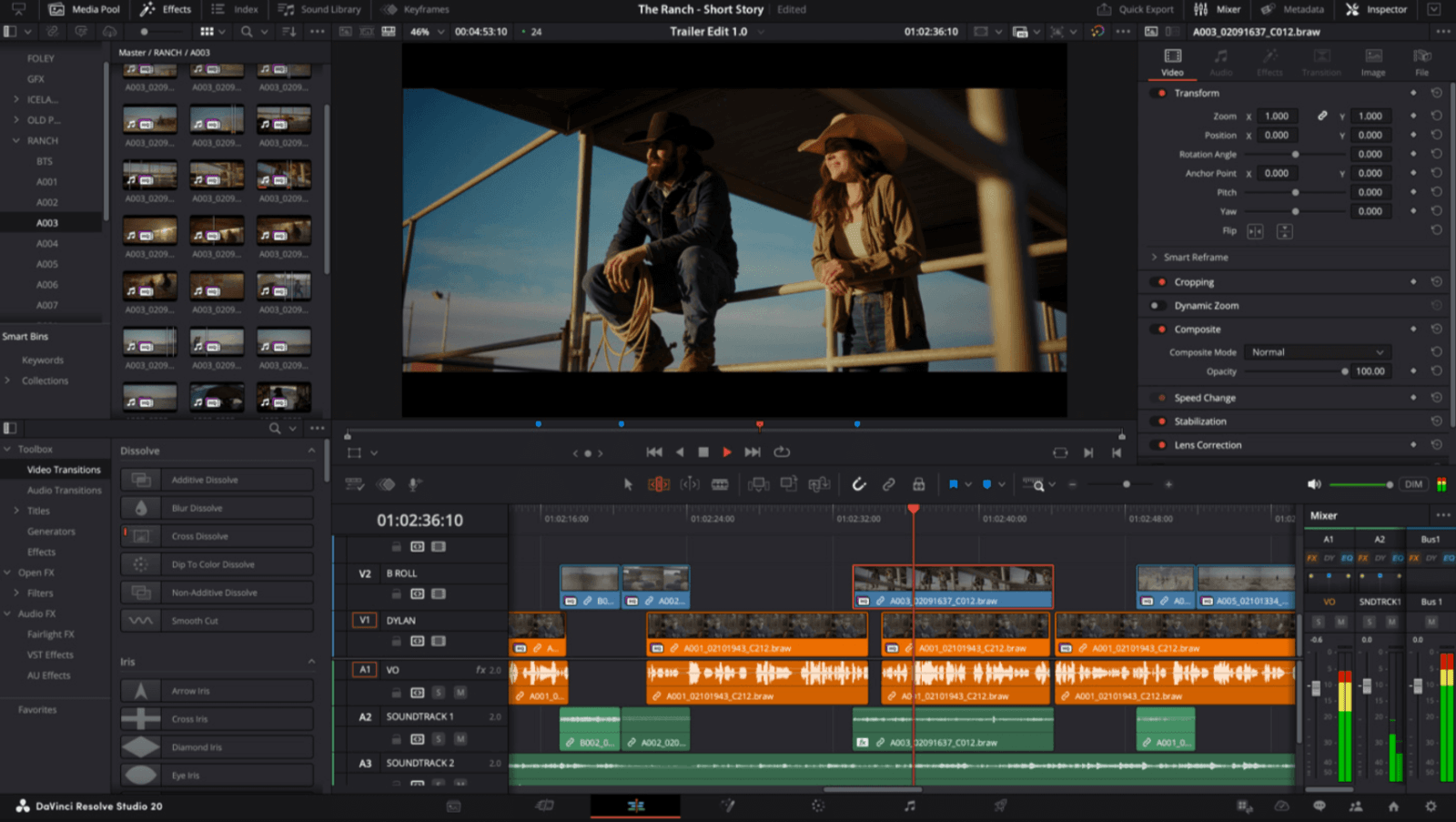
Resolve is the deep end of the pool, but it’s also one of the most future-proof choices. It’s known for serious editing and color work, and newer AI-assisted tools can speed up tedious tasks like masking or reframing. You can start simple (cuts, audio, basic color) and gradually learn more.
Best for: Creators who expect to stick with YouTube long-term and want room to grow into more “filmic” work.
Pros:
- Powerful editing and excellent color tools
- Can deliver very high-end results
- Great skill investment if you’re committed
Cons:
- Learning curve is real
- Can be heavy on hardware, especially with demanding footage
- Overkill if you only want quick weekly edits
4. CapCut
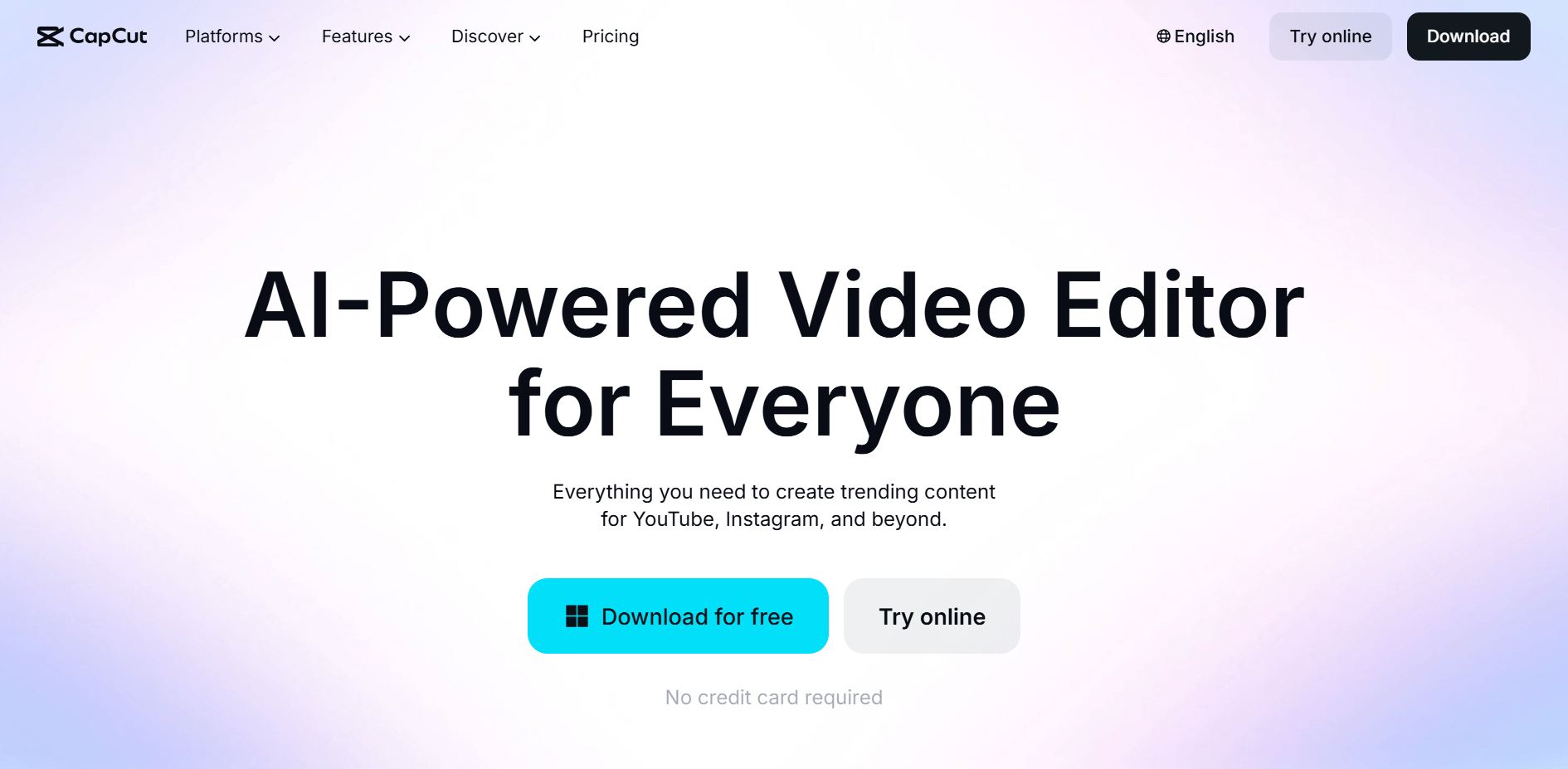
CapCut is optimized for speed and social formats. Auto-captions, quick templates, and easy vertical editing are the main attractions. If Shorts are part of your plan, CapCut can save you a lot of time.
Best for: Shorts-first creators, people who edit on mobile, and anyone cross-posting to other platforms.
Pros:
- Very quick workflow for short-form
- Captions and formatting are painless
- Great for “edit today, post today” schedules
Cons:
- Long-form projects can feel cramped
- Desktop experience can be lighter than full editors
5. Descript
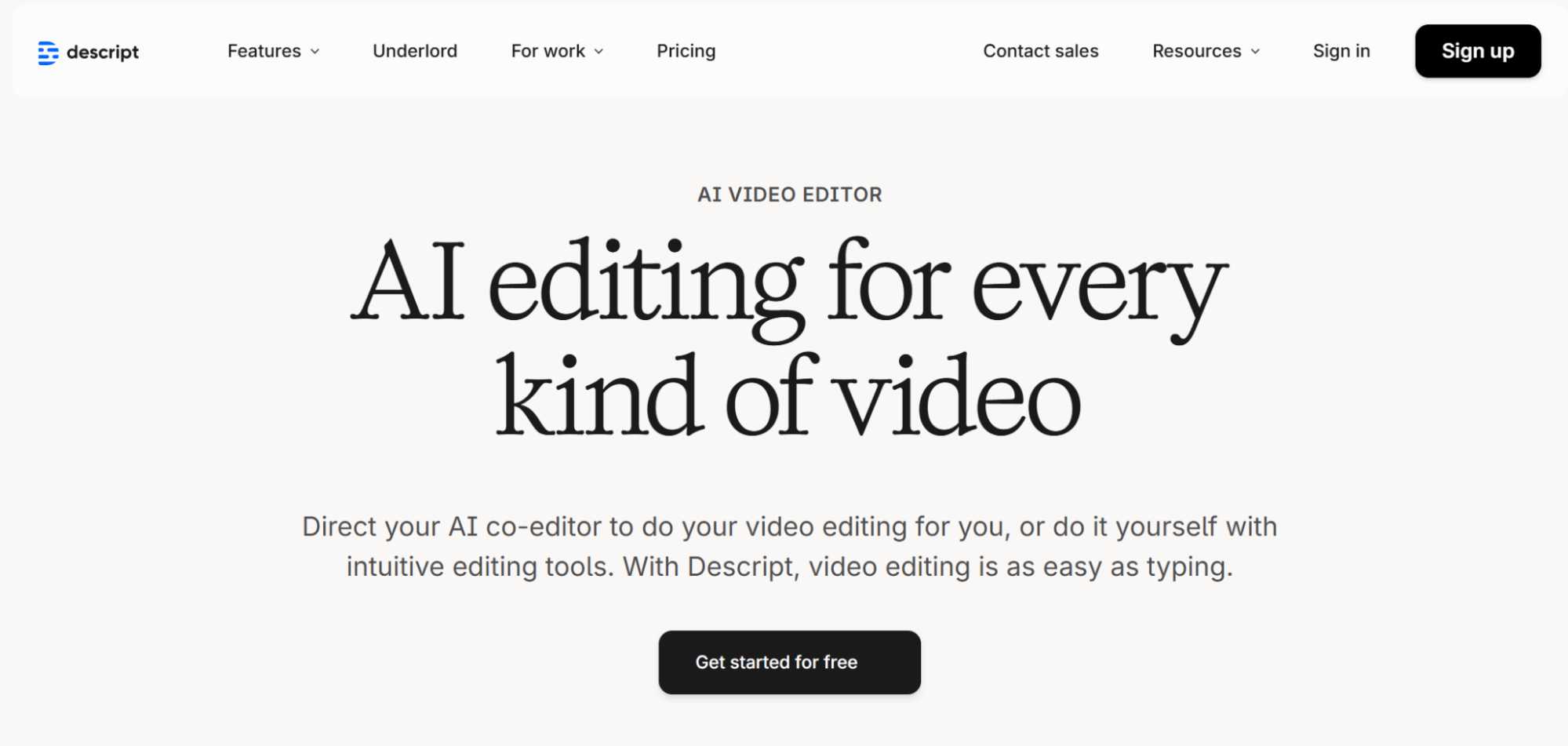
Descript is the odd one out in a good way. You edit video like you’re editing a document: it transcribes your recording, and when you delete words, it removes those parts of the video. It’s especially useful for tightening tutorials, interviews, podcasts, and talking-head content, and for cleaning up filler words and awkward pauses.
Best for: Channels where the voice track is the main asset: teaching, commentary, interviews, explainers.
Pros:
- Huge time-saver for speech-heavy edits
- Makes tightening pacing feel straightforward
- Captions are basically built into the workflow
Cons:
- Not a “visual effects” editor
- You still need to skim the transcript for errors
6. CyberLink PowerDirector
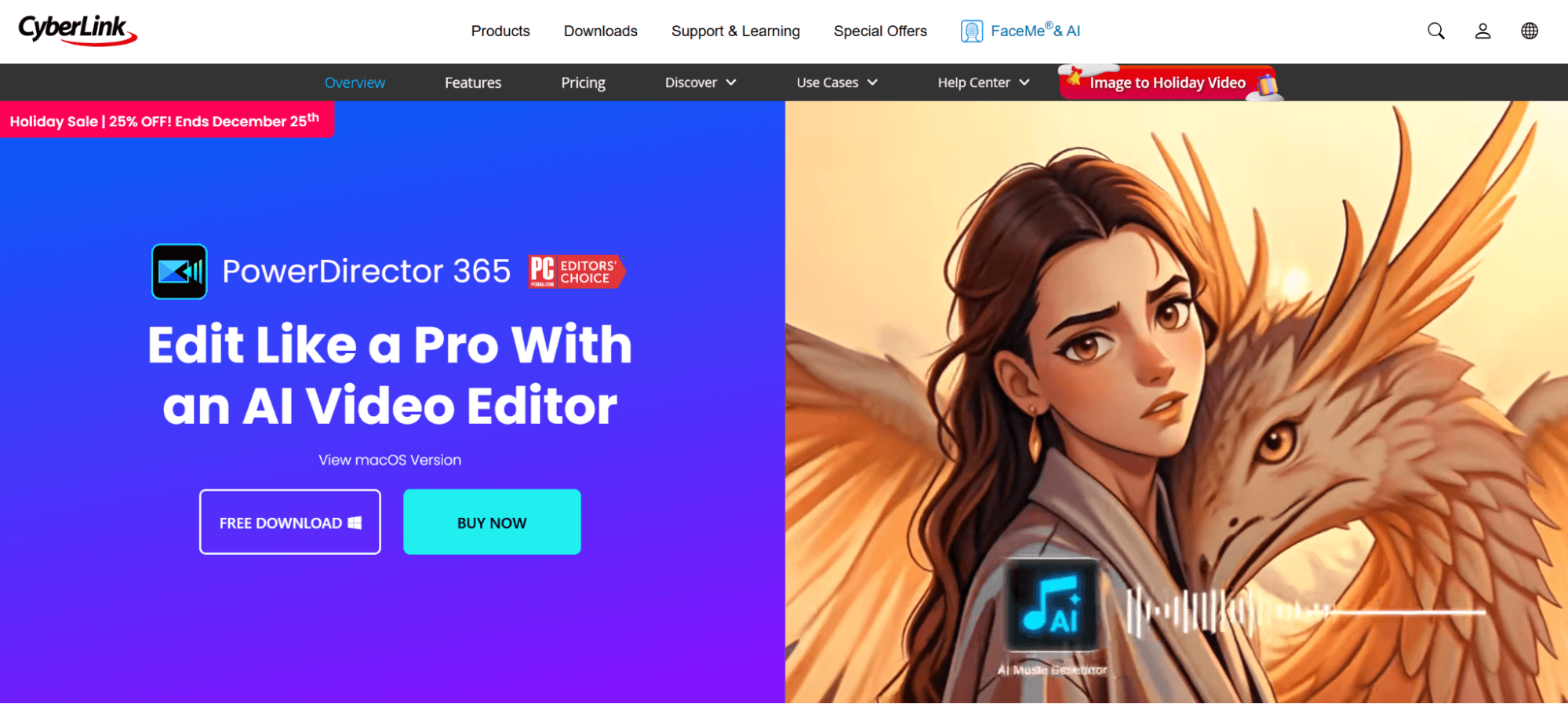
PowerDirector feels like a classic timeline editor but with modern AI enhancements for polishing footage: stabilization, tracking, background tweaks, and quick improvement tools. It’s handy when your footage needs help (shaky clips, uneven lighting) and you don’t want to manually fix everything.
Best for: Lifestyle, travel, fitness, and creators who film on phones/action cams and want fast cleanup.
Pros:
- Lots of features and effects without feeling ultra-technical
- Useful AI “fix it” tools for common footage problems
- Strong all-around editor for regular uploads
Cons:
- Feature-heavy interface can feel busy at first
- Some AI extras sit behind paid tiers
7. Pictory
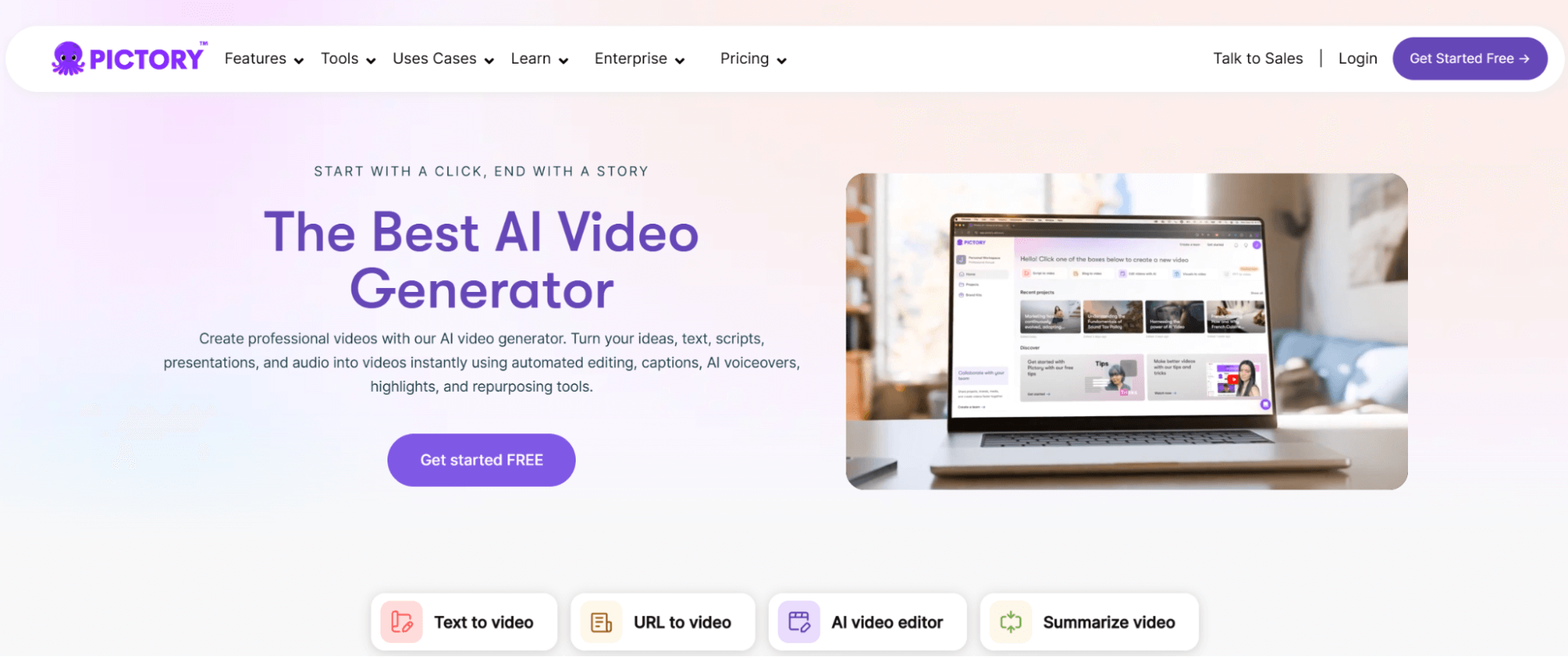
Pictory is closer to “script-to-video” than classic editing. Feed it text, and it builds a draft using stock visuals, text overlays, captions, and voice options. It can be a practical way to produce consistent uploads when you don’t have much original footage.
Best for: Faceless channels, list videos, business explainers, and repurposing content (especially written).
Pros:
- Fast way to turn ideas into a usable draft
- Helpful when filming time is limited
- Good for repurposing blog/newsletter content
Cons:
- Can look generic unless you customize carefully
- Not ideal for personality-driven, on-camera channels
How to make YouTube videos: practical tips for creators in 2026
Finding your niche
Pick a niche you can realistically sustain, not one that sounds impressive. A simple test: could you make 20 videos on the topic without forcing it? If yes, you’re close.
Instead of choosing something huge (“tech,” “fitness,” “gaming”), narrow it by audience or format. Examples:
- “Beginner-friendly PC builds for students”
- “Budget meal prep for people who hate cooking”
- “Short, calm game reviews for busy adults”
Then look at comments on similar videos. People will tell you what they don’t understand, what they still struggle with, and what they wish creators would stop doing. That’s content direction handed to you for free.
Creating a channel so it looks trustworthy
When you create your YouTube presence, don’t treat the setup like a formality. A clean banner, readable profile image, and a short “About” section make a difference because they signal you’re serious.
Make the “About” simple: who the channel is for, what viewers will learn or get, and how often you plan to upload. Also: pick one repeatable format you can maintain. A realistic schedule always wins. One long video weekly is better than three videos for two weeks and then silence.
Making engaging videos
If you want a practical answer to how to make YouTube videos that people actually finish, it usually comes down to a few habits:
- Start with the point. In the first 10 seconds, tell viewers what they’ll get and why it matters. Don’t warm up for a minute. If you’re struggling with how to begin the video, browse for hook ideas.
- Cut like you respect your own time. If a sentence repeats the same idea, keep the better version and remove the rest. This is where AI helps: silence removal and captions speed up editing YouTube videos, but you’re still the editor.
- Use a simple structure. Even a casual video benefits from: problem → approach → steps → result. Viewers relax when they can feel the direction.
- Make it easier to watch. Add on-screen text for key points, quick b-roll, or screen captures. Not for style, but for clarity.
- End with a next step. Give viewers somewhere to go: a related video, a checklist, a question to answer. It’s not begging for engagement; it’s good navigation.
How to get your YouTube videos seen outside YouTube
Publishing consistently is only half the equation. Especially for new or niche channels, discovery outside YouTube can make a real difference.
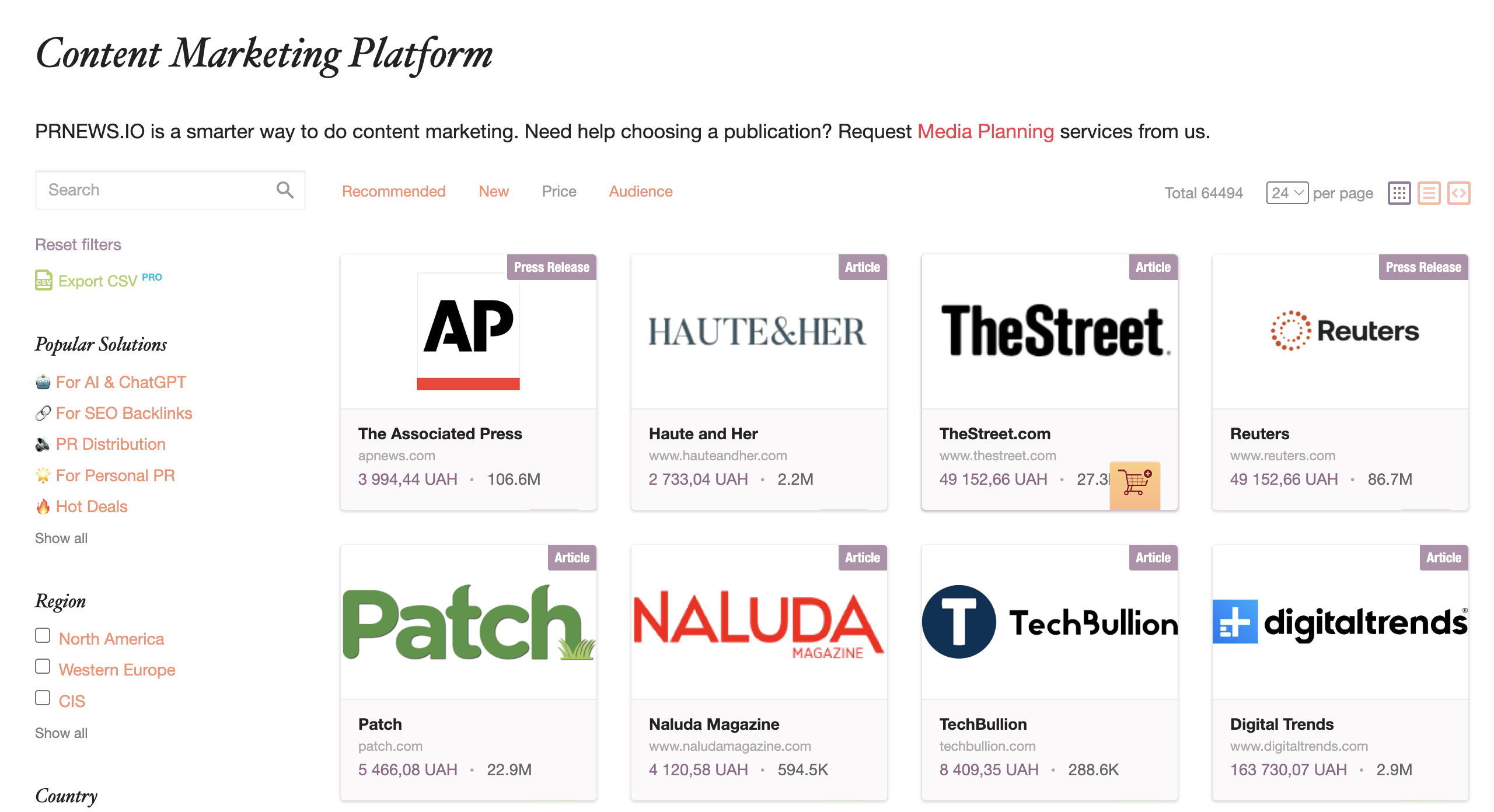
One practical approach is placing your videos inside relevant articles where people already read about your topic. Platforms like PRNEWS.io let creators and small teams publish native articles on media websites, blogs, and niche platforms — with your YouTube video embedded naturally in the content.
Instead of “promoting a channel,” you’re sharing expertise: a tutorial, analysis, or explainer that links back to your video. This can bring targeted viewers, improve credibility, and help your content live longer than a single upload cycle.
Final thoughts
In 2026, the best editing setup is the one that keeps you publishing. The top tools above cover different needs: Movavi Video Editor for clean, beginner-friendly speed; CapCut for Shorts; Descript for talking-heavy videos; Resolve for deeper control; Pictory for text-first workflows. Pick software that matches the kind of content you’re making right now, not the kind you might make someday.
Get a niche you can sustain, build a channel that looks intentional, and edit for clarity and pace. Do that consistently, and the numbers tend to follow.