Creating engaging videos isn’t just about visuals—your voice matters too. Whether you’re making a YouTube vlog, TikTok story, or educational reel, how the words sound plays a big role. That’s where CapCut’s Text to Speech AI feature steps in. But here’s the secret sauce—CapCut also lets you change the emotion and tone of the AI voice. And when done right, this can add personality, depth, and connection to your videos.
In this guide, we’ll explore how to use CapCut’s Text to Speech emotion and tone settings to make your narration sound more natural and emotionally rich. No need for voice actors or fancy recording mics—just a few clicks can make your voiceovers sound cheerful, serious, energetic, or soothing.

Why emotion and tone matter in voiceovers
Imagine watching a sad story with a robotic, happy voice. It feels off, right? The right emotion helps your viewers feel your message. Whether it’s excitement in a product reveal or a calming tone in a tutorial, voice emotion helps tell the story better. That’s why CapCut’s AI Voice Generator comes with tone variations like Joyful, Serious, Friendly, and more, making your video voiceovers sound less like a robot and more like a real person talking.
CapCut’s text to speech: a quick overview
CapCut offers built-in TTS voices in multiple languages, accents, and styles. Once you type in your text and select a voice, you can go a step further and choose how that voice sounds—emotional tone, speed, and pitch are all customizable. This tool is available on both the CapCut Desktop and Mobile versions, but for best results and more control, we recommend using CapCut Desktop Video Editor.
How to add emotion and tone in CapCut text to speech
Step 1: add text and open the text to speech AI tool
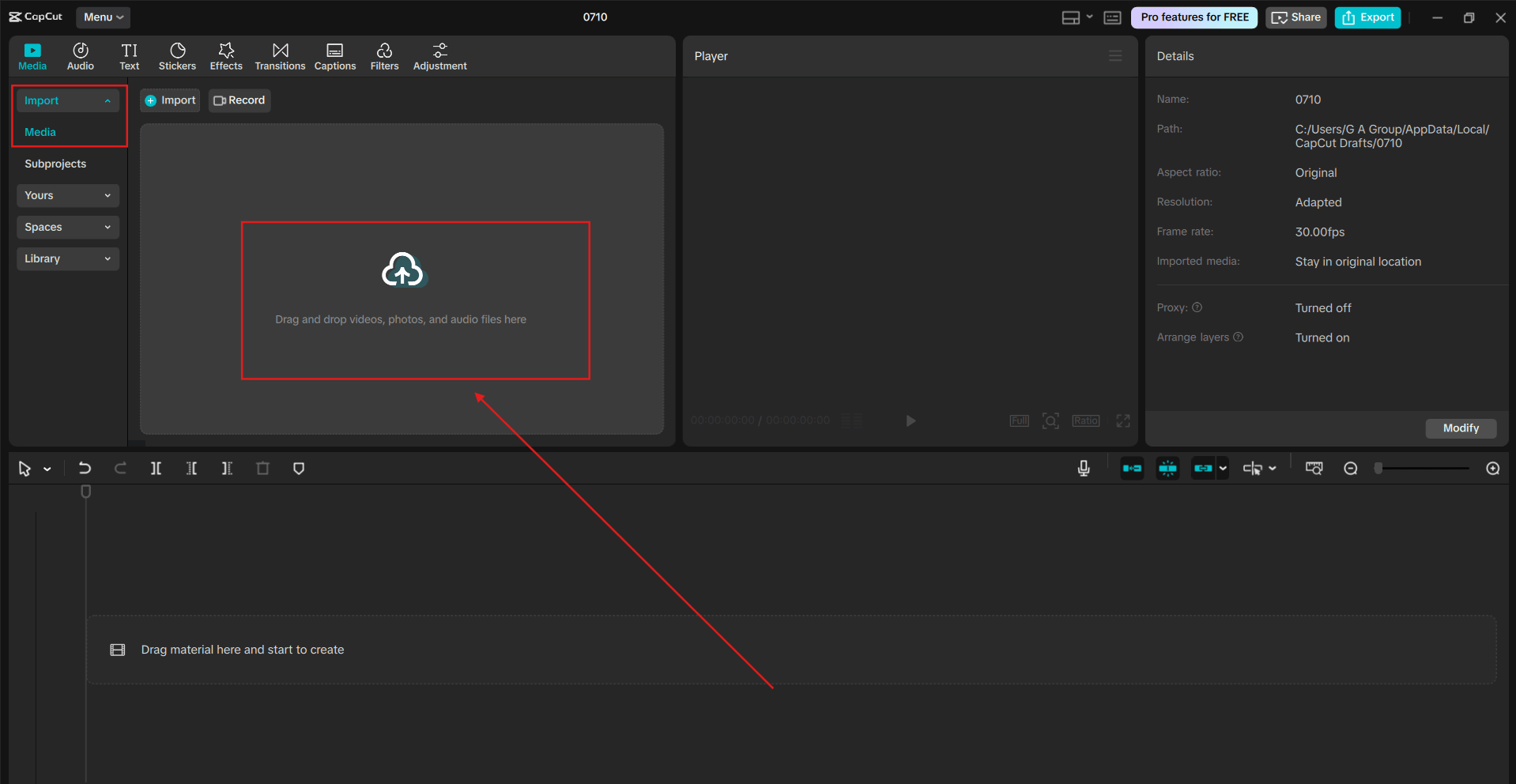
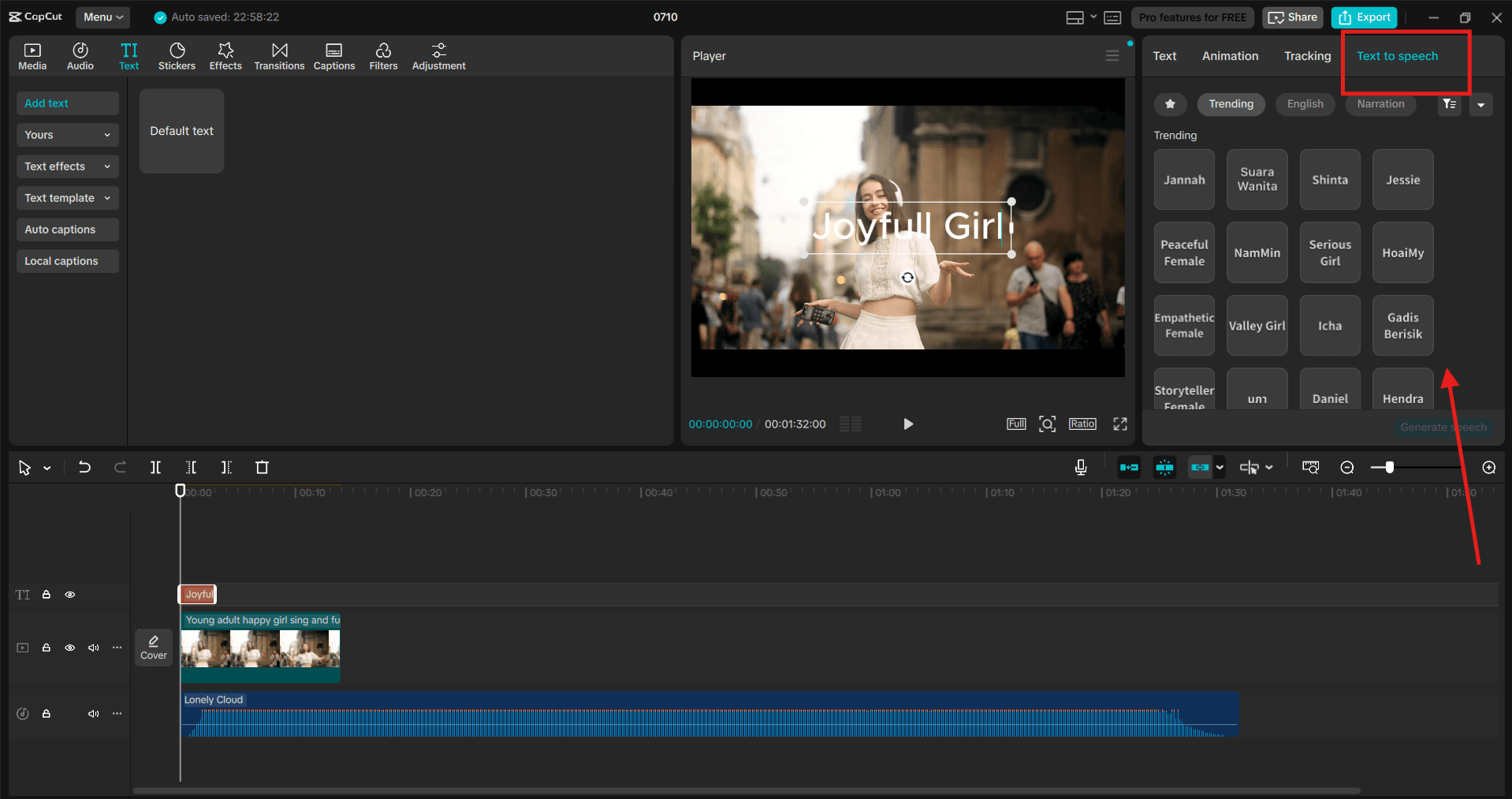
Open CapCut Desktop and import your video project. Click the “Text” option in the left panel. Choose “Add Text ” and type the script you want spoken. Highlight the text and click on “Text to Speech” in the top bar. You’ll see a variety of voices—male and female, different languages, and even character-style voices. Write naturally. Don’t type in long, complex sentences. Short and simple phrases make the AI voice sound more realistic.
Step 2: choose voice and emotion setting
From the voice list, select the one that fits your content. For example:
- “Female–Friendly” for lifestyle vlogs
- “Male – Serious” for news-like content
- “Female – Joyful” for product unboxings
After selecting the voice, scroll to tone options like:
- Joyful
- Angry
- Serious
- Sad
- Whisper
- Cheerful
Choose the one that fits your content vibe. For example:
- Joyful tone works for celebrations, wins, or fun announcements.
- A serious tone adds weight to documentary or awareness topics.
- Sad or Whisper tones work well for emotional stories or calm moments. Match the voice tone with your background music and video visuals for the best emotional impact.
Step 3: adjust pitch and speed for natural flow
After choosing your tone, don’t forget to tweak the Speed and Pitch settings. Try AI Video Upscaler for clear and high-quality video. Use the sliders or input values manually:
- Speed: 0.8x to 1.2x (Slower for dramatic, faster for energetic)
- Pitch: Lower pitch sounds deeper, while higher pitch sounds more upbeat or animated.
You can preview how the voice sounds before confirming. Try a few combinations until it feels just right. Always play the video with background music and TTS together. Sometimes, a tone sounds good alone but feels off with music.
Where to use emotionally-tuned TTS in your videos
CapCut’s Text to Speech with emotional tones isn’t just a gimmick—it’s helpful in real content situations. Here are examples:
1. Storytelling reels
Add a sad tone to nostalgic photo montages or a whisper tone for suspenseful tales.
2. Product demos
Use a cheerful tone to sound excited about your product or a serious tone to explain technical features.
3. Tutorials
Keep it friendly to make your audience feel relaxed and more engaged.
4. Countdowns & teasers
Energetic tones build hype, while calm tones can work for minimalist aesthetics.
Tips to make your TTS sound more human
- Break up long text: Use shorter sentences for better pacing.
- Add pauses: Use ellipses (…) or dashes (—) in your script to simulate natural speech breaks.
- Mix tones: You can create multiple TTS clips with different tones to mimic emotional shifts.
- Add subtitles: Pair voice with on-screen text to enhance clarity and engagement.
Why CapCut is perfect for emotionally-rich voiceovers
CapCut’s TTS tool isn’t just basic—it’s flexible, intuitive, and free. With a variety of voice types, emotions, and adjustments, you can control how your content sounds without spending money on narrators or editing software.
Highlights:
- Multi-language support
- Emotion tones for deeper expression
- Realistic voice textures
- Sync with visuals and sound effects easily
Whether you’re a student, marketer, or content creator, this tool is a significant time-saver.
Conclusion
Voice can make or break a video’s impact. With CapCut’s emotional and tonal settings in Text to Speech, your videos don’t just speak—they connect. You can guide how viewers feel through tone, pacing, and emotion, all without recording a single word yourself. Next time you edit a video, don’t settle for flat narration. Bring your words to life—cheerful, serious, dramatic, or calm—CapCut helps you do it all.